Getting Started with nano - The Beginner-Friendly Editor Before Vim
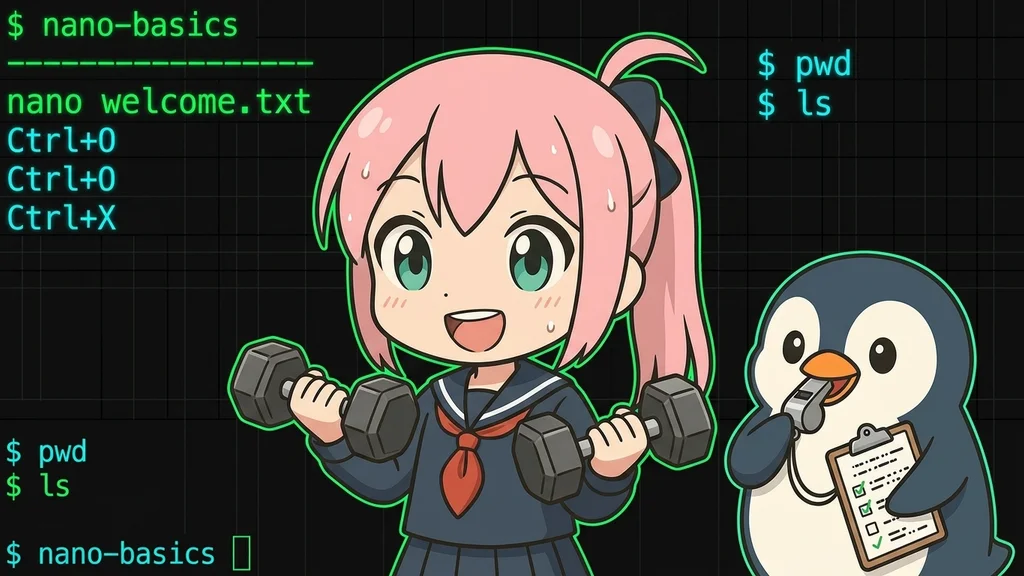
What You'll Learn
- Why nano is the best starting editor for Linux beginners
- How to open, edit, save (Ctrl+O), and exit (Ctrl+X) with confidence
- The essential keyboard shortcuts that cover 90% of daily use
- How to search and replace text inside nano
- How to safely edit system config files using
sudo nano
Why nano First?
Conclusion: nano shows all shortcuts at the bottom — no memorization needed to get started.
Linux has several text editors. nano stands out for beginners because keyboard shortcuts are always shown at the bottom of the screen — no memorizing required.
Why nano is beginner-friendly
- Shortcuts are always visible at the bottom of the screen
- No special modes — just start typing right away
- Widely available on Linux servers
Opening nano
Conclusion: Run
nano filenameto open or create a file and start typing immediately.
nano followed by the filename — that's it!nano filename
Example: opening memo.txt
nano memo.txt
If the file doesn't exist yet, nano will create it when you save.
What You See After Opening
  GNU nano 6.2                   memo.txt

▌

^G Help       ^O Write Out  ^W Where Is   ^K Cut        ^T Execute
^X Exit       ^R Read File  ^\ Replace    ^U Paste       ^J Justify
^ symbol means the Ctrl key. So ^O means Ctrl+O.Reading the screen
- Top line: filename
- Middle area: your editing space
- Bottom 2 lines: shortcut reference (
^=Ctrl)
Editing Text
Conclusion: nano has no modes — just start typing; cut with Ctrl+K, paste with Ctrl+U.
i before typing.Just start typing wherever the cursor is.
Moving around:
| Key | Action |
|---|---|
| Arrow keys | Move cursor |
| Home / End | Start / end of line |
| Page Up / Down | Scroll one screen |
| Ctrl+A | Go to start of line |
| Ctrl+E | Go to end of line |
Deleting text:
| Key | Action |
|---|---|
| Backspace | Delete character before cursor |
| Delete | Delete character after cursor |
| Ctrl+K | Cut entire line |
Saving
Conclusion: Press Ctrl+O to save — confirm the filename and press Enter to write to disk.
Ctrl+O. Think of "O" as "Output" — writing the content out to disk.Press Ctrl+O and nano will ask you to confirm the filename:
File Name to Write: memo.txt
Just press Enter to save with the same name.
To save under a different name, change the filename before pressing Enter.
Exiting
Conclusion: Press Ctrl+X to exit — nano asks Y/N/Ctrl+C if you have unsaved changes.
Press Ctrl+X to exit.
If you have unsaved changes, nano asks:
Save modified buffer (ANSWERING "No" WILL DESTROY CHANGES)?
| Key | Action |
|---|---|
| Y | Save and exit |
| N | Exit without saving (discard changes) |
| Ctrl+C | Cancel (go back to editing) |
Key Shortcuts to Know
Conclusion: Ctrl+O, Ctrl+X, Ctrl+W, and Ctrl+K/U cover 90% of daily editing.
Start with these 4
| Shortcut | Action |
|---|---|
Ctrl+O |
Save (write to file) |
Ctrl+X |
Exit |
Ctrl+W |
Search |
Ctrl+K / Ctrl+U |
Cut line / Paste line |
More Useful Shortcuts
| Shortcut | Action |
|---|---|
Ctrl+G |
Open help |
Ctrl+C |
Show cursor position (line number) |
Ctrl+V |
Scroll down one page |
Ctrl+Y |
Scroll up one page |
Alt+U |
Undo |
Alt+E |
Redo |
Search and Replace
Conclusion: Ctrl+W searches; Ctrl+\ finds-and-replaces with Y/N per match or A for all.
Ctrl+W searches, and Ctrl+\ does find-and-replace.Search (Ctrl+W)
- Press
Ctrl+W - Type what you're looking for
- Press Enter
To find the next match, press Ctrl+W → Enter again.
Replace (Ctrl+\)
- Press
Ctrl+\ - Enter search text → Enter
- Enter replacement text → Enter
- Confirm each match with Y / N, or press A to replace all
Practical Example: Editing a Config File
Conclusion: Use
sudo nanofor rootThe special administrator account allowed to do anything on the system.-owned files — always back up first with sudo cp.
sudo in front — like sudo nano /etc/hosts.sudo nano /etc/hosts
Before editing important files
Always make a backup first:
sudo cp /etc/hosts /etc/hosts.bak
Then edit safely with sudo nano /etc/hosts.
Summary
| Task | Key |
|---|---|
| Open a file | nano filename |
| Save | Ctrl+O → Enter |
| Exit | Ctrl+X |
| Search | Ctrl+W |
| Cut a line | Ctrl+K |
| Paste | Ctrl+U |
| Undo | Alt+U |