Absolute vs Relative Paths: ., .., and ~ Explained
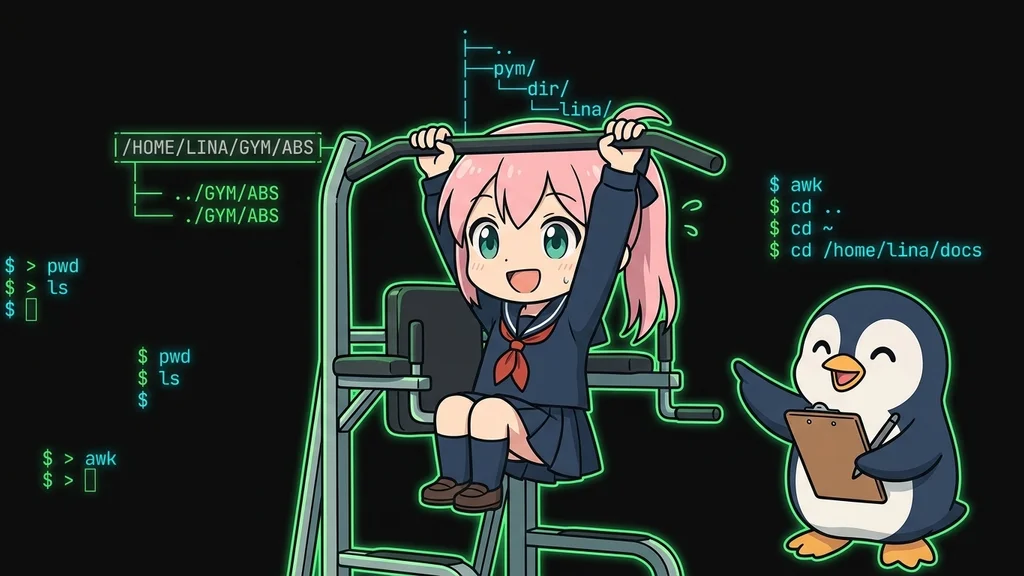
What you'll be able to do
- Use absolute and relative paths in the right situations
- Read correctly what ., .., and ~ point to
Prerequisites (read these first)
Confused by How Paths Are Written?
"The guide says cd ../logs, but what is that ..?" "Where exactly is the ~ in ~/Documents?" As soon as you start learning commands, you run into these symbol-laden "addresses." They are called paths.
In this guide, Lina and Linny-senpai walk through the difference between absolute paths and relative paths. They also cover the meaning of three symbols: ., .., and ~. By the end, you'll be able to look at any pathA string that describes the location of a file or directory. and know exactly which location it points to.
What You'll Learn
- That a "path" is the address of a file or folderA container that organizes files. Same idea as a "folder" on Windows or macOS.
- The difference between absolute paths (starting from
/) and relative paths (from where you are) - What
.(here),..(one level up), and~(home) mean - That the same location can be written two different ways
- How to use
pwdto check where you are when you get lost - How to check your understanding with three mini exercises
1. What Is a Path, Anyway?
Conclusion: A path is the "address" of a file or folder—the route you follow through folders, written with
/as the separator.
/home/lina/memo.txt in command guides, but I never know what they actually mean.../home/lina/memo.txt means "the memo.txt inside the lina folder, inside the home folder." The / (slash) is the separator./) is the basic rule for reading a path.A path is the route to a file
In Linux, every file and folder lives in a single tree that starts at / (the root). A path describes which branches of that tree to follow to reach your target. The tree itself is covered in The Linux Directory Structure.
2. What Is an Absolute Path?
Conclusion: An absolute path always starts from
/(the root). It points to the same place no matter where you are. Think of it as a full address written from the country down.
/ represents the top of the tree, the root directory. An absolute path writes out the full route from that top to your destination, leaving nothing out./etc/hosts stays /etc/hosts whether you're in your home folder or anywhere else. It's like a complete postal address written from the country down.cd /etc pwd
/etc
Because /etc starts with /, you move there no matter where you currently are.
The giveaway is the leading /
- Starts from
/(the root) - Same result regardless of your current location
- Best when you want to point to "exactly this place"—config files, scripts, and so on
3. What Is a Relative Path?
Conclusion: A relative path uses your current location as the starting point. This location is called the "current directory" (also known as the working directory). A relative path does not start with
/, and where it points changes when your location changes.
/. It writes the route starting from where you are right now./home/lina and type cd Documents, you move to /home/lina/Documents. It means "into Documents, as seen from here."cd Documents somewhere else...?/var, it looks for /var/Documents. That's why it's called "relative"—where it points shifts depending on where you stand.pwd
/home/lina
cd Documents
pwd
/home/lina/Documents
A relative path's result depends on where you are
The same cd Documents lands you somewhere different if your current directory differs. When a command doesn't do what you expect, check your location first with pwd.
4. What Do ., .., and ~ Mean?
Conclusion:
.means "here (current location)."..means "one level up."~means "your home directory."
., .., and ~, really? They've always been a mystery.. (one dot) means "the place you're in right now." .. (two dots) means "one level up." ~ (tilde) is a shortcut for "your home directory" (the folder you start in when you log in, also called the home directory).| Symbol | Name | Meaning | Example |
|---|---|---|---|
. |
dot / current | Where you are now | ./script.sh (the script here) |
.. |
dot-dot | One level up | cd .. (to the parent folder) |
~ |
tilde | Your home directory | cd ~ (jump straight home) |
Go up one level with ..
.. the most./home/lina/Documents, cd .. takes you up to /home/lina. Another cd .. takes you to /home.pwd
/home/lina/Documents
cd ..
pwd
/home/lina
You can also combine them. cd ../../etc means "go up two levels, then into etc."
Jump home in one step with ~
~ handy?cd ~ takes you straight back to your home directory (like /home/lina). Think of it as a "go home" button for when you're lost deep in some folder. Running cd with no argument does the same thing.cd ~ pwd
/home/lina
Writing ~/Documents points to "Documents inside your home," no matter where you currently are.
When do you use .?
You rarely type . on its own. But it shows up often when running scripts, as ./script.sh. That means "the script.sh in the current folder."
Without the ./, the shellAn interactive program that reads the commands you type and runs them. (the program that receives and runs the commands you type, running inside the terminal) only searches its predefined command locations—it doesn't check the current folder. That's why the script may not be found and the command fails. Prefixing ./ is the standard way to run your own scripts.
5. Absolute or Relative—Which Should You Use?
Conclusion: Use an absolute path when you need certainty. Use a relative path to move somewhere nearby quickly. The same location can often be written either way.
/home/lina, both /home/lina/Documents (absolute) and Documents (relative) lead to the same place. Being shorter is the relative path's strength.Here's the same move written two ways (current location is /home/lina):
cd /home/lina/Documents
cd Documents
Both end up moving you to the same /home/lina/Documents.
Rules of thumb
- Absolute path: when you want to point to config files, scripts, or a far-off place "for certain"
- Relative path: when you want to reach something "nearby"—right next door, one level up—quickly
- When in doubt, an absolute path is safer (it doesn't depend on your current location)
6. What If You Get Lost?
Conclusion: Use
pwdto check where you are. When a relative path misbehaves, suspect your current location first.
cd Documents and got an error instead of moving. The same command worked a minute ago, but not this time...! Why did it fail this time?cd Documents
bash: cd: Documents: No such file or directory
No such file or directory means "there's no file or folder with that name here." A relative path is based on your current location. So if you're somewhere other than you thought, it fails.pwd. It stands for "print working directory" and shows where you are. When you hit an error, check your location with pwd first.pwd
/var/log
/var/log! The earlier cd Documents worked because I was in /home/lina. This time it failed because I was somewhere else. That makes sense now.If you're told "Documents doesn't exist," the pwd result lets you realize "oh, I'm in /var/log—let me use cd ~/Documents instead." Listing the current folder with ls to see what you can move into next also helps.
You can practice moving between paths right in your browser. Open the Penguin Gym Linux terminal and type cd and pwd over and over to feel how your location changes. Hands-on practice is the fastest way to learn.
Mini Exercises
Conclusion: Three exercises to check your understanding of absolute paths, relative paths, and
...~.
Exercise 1: Lina is in /home/lina/Documents. What should she type to get back to /home/lina?
Show Hint 1 (Direction)
The destination is one level up from where Lina is now. One of the symbols from the table describes this move.
Show Hint 2 (Command Name)
Use cd ...
Show Answer
pwd
/home/lina/Documents
cd .. pwd
/home/lina
Exercise 2: Lina is in /var/log. What should she type to jump straight back to her home directory (/home/lina) in one step?
Show Hint 1 (Direction)
There's a special symbol that jumps straight to your home directory, without writing the full absolute path.
Show Hint 2 (Command Name)
Use cd ~. Running cd with no argument gives the same result.
Show Answer
pwd
/var/log
cd ~
pwd
/home/lina
Exercise 3: Lina is in /var. She typed the relative path cd Documents and got bash: cd: Documents: No such file or directory. What should she type to reliably reach Documents inside her home directory?
Show Hint 1 (Direction)
A relative path is based on your current location. Think about which kind of path points to the same place no matter where you are.
Show Hint 2 (Command Name)
Combine cd with an absolute path, or with ~.
Show Answer
pwd
/var
cd /home/lina/Documents
pwd
/home/lina/Documents
cd ~/Documents also works.
Summary
- A path is a file or folder's "address," written as a route separated by
/ - An absolute path starts from
/(the root) and points to the same place regardless of your location - A relative path does not start with
/and is based on your current directory .is here,..is one level up, and~is your home directory- When a relative path trips you up, check your location with
pwdfirst