Pipes and Redirection Basics: Understanding Data Flow in Linux
What you'll be able to do
- Save and append output to a file with `>` and `>>`
- Chain commands with `|` to reshape the result
- Split or merge error output with `2>` and `2>&1`
Prerequisites (read these first)
What You'll Learn
- The concept of "data flow" in Linux
- The difference between
|(pipe) and>>>(redirection) - How to handle stdout and stderr separately
- How to combine
grep,sort, and other tools by chaining small commands
Quick Summary
- To save output to a file, use
>or>>. - To pass output to another command, use
|. - To handle errors separately, use
2>.
Before you start: the one thing to watch in this article is >. It empties the target file first. If you point > at a file that has contents, those contents are gone.
What happens if you get it wrong: the old contents do not go to the Trash. They cannot be restored.
How to try this safely: practice in a fresh directoryA container that organizes files. Same idea as a "folder" on Windows or macOS. such as ~/practice, and write to a new filename. If you only want to add lines, use >> from the start and nothing is erased. The virtual terminalAn interactive program that reads the commands you type and runs them. on this site is for learning, so your own machine cannot break. Try things freely.
1. Where Does Data Come From and Go?
Conclusion: A Linux command has three channels: stdin, stdout, and stderr.
ls, file names appear on the screen. Where exactly are they coming from?A note on words: standard input, standard output, and standard error are usually written as stdin, stdout, and stderr. Both forms mean the same thing, and books and articles mix them freely.
The 3 standard streams
| Name | Short | Number | Default destination |
|---|---|---|---|
| Standard input | stdin | 0 |
Keyboard |
| Standard output | stdout | 1 |
Screen |
| Standard error | stderr | 2 |
Screen |
2. Redirection: Save Output to a File
Conclusion: Use
>to overwrite a file and>>to append safely.
2-1. > — Overwrite
$ ls > files.txt
> redirected the output to a file instead of the screen, so nothing prints. Check the file.cat. It prints the contents of a file to the screen.$ cat files.txt
Documents
Downloads
files.txt
Pictures
2-2. >> — Append
$ echo "line 1" > log.txt
$ echo "line 2" >> log.txt
$ cat log.txt
line 1
line 2
> truncates the existing file before writing. Using > on an important file will erase its contents. Always use >> when you want to append.
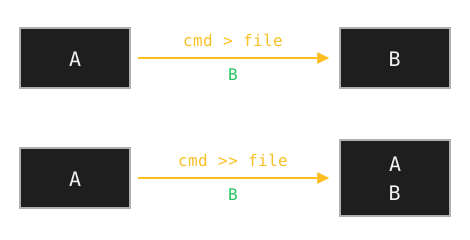
Figure 1: The left box is the file before the write, the right box is the same file after it. The two rows are separate cases. With >, the original A is gone and only B remains. With >>, B is added after A.
2-3. < — Read Input from a File (advanced)
The wc command counts things. With -l it counts lines.
$ wc -l < log.txt
2
wc -l log.txt?< is "feed this file in place of the keyboard." For now, mastering > and >> is enough.3. Pipe: Connect Commands
Conclusion:
|feeds one command's output into the next command.
3-1. The Basics
| (vertical bar, "pipe") means "send the left command's output as the right command's input."
$ ls | wc -l
12
ls output is fed to wc -l to count files!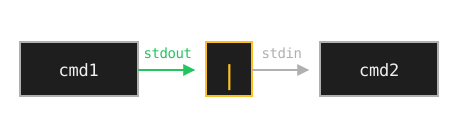
Figure 2: | feeds the left command's output (stdout) into the right command's input (stdin). Nothing is printed on screen in between — the data goes straight to the next command. Errors (stderr) do not travel through this pipe; they still go to the screen.
3-2. Common Combinations
# Filter file list to only those containing ".txt"
$ ls | grep .txt

# Show nginx-related processes
$ ps aux | grep nginx

# Reverse-sort the access log and show the latest 10 lines
$ cat access.log | sort -r | head -n 10
Pipes can chain as many commands as you want
$ cmd1 | cmd2 | cmd3 | ...
The trick is to give each stage a clear role: filter, sort, format.
4. Pipe vs Redirection
Conclusion:
>saves output to a file;|passes it to a command.
> and |?> vs |
cmd > file    →  destination is a [file]
cmd | cmd2    →  destination is [next command's stdin]
- Use
>when you want to save. - Use
|when you want to process further.
# Pattern A: save ls output to a file
$ ls > list.txt

# Pattern B: filter ls output through grep
$ ls | grep ".log"

# Pattern C: combine — filter, then save
$ ls | grep ".log" > log-files.txt
"Chain with |, then save the result with >" is the most common real-world pattern.
5. Handling Standard Error (stderr)
Conclusion: Errors use stderr; split with
2>, merge with2>&1.
5-1. Errors Come from a Different Channel
$ ls /not-exist > out.txt
ls: cannot access '/not-exist': No such file or directory
out.txt, but the error still shows on screen!> only redirects stdout. To capture errors, use the number 2.> only catches one of them. So I should reach for 2> when I want the errors?5-2. Send Errors to a Separate File
$ ls /not-exist 2> error.log
(nothing on screen)
$ cat error.log
ls: cannot access '/not-exist': No such file or directory
5-3. Merge stdout and stderr Into One File
$ command > all.log 2>&1
What 2>&1 means
"Send stderr (2) to the same place as stdout (1)." This pattern is everywhere in log collection — memorize the form.
Order matters. > all.log 2>&1 is correct; 2>&1 > all.log does not capture stderr in all.log (stderr ends up wherever stdout was pointing before the redirect).
6. Common Beginner Pitfalls
Conclusion: Never redirect a file into itself; use
teemid-pipe.
6-1. Using > Wiped My File
$ cat important.txt > important.txt # BAD: file becomes empty
> truncates the destination file before the command runs. So cat reads an already-empty file.
Never redirect a command's output back into the same file it reads.
6-2. Do I Need Spaces Around |?
Either works. Adding spaces is the convention for readability.
$ ls|grep txt       # works, but hard to read
$ ls | grep txt     # recommended
6-3. I Want to See Intermediate Pipe Output
$ ls | tee list.txt | wc -l
tee records what's flowing through into a file while passing it on. Useful for debugging or keeping a snapshot of intermediate results.
7. Mini Exercises
Conclusion: Three drills: save, count, and filter-then-save output.
Exercise 1: Save the file list of your home directory into home-files.txt.
Show hint 1 (direction)
You already know the command that lists things. Change where its result goes: from the screen to a file.
Show hint 2 (command names)
The command is ls. The symbol that changes the destination is >. Your home directory is written as ~.
Show the answer
$ ls ~ > home-files.txt
$ cat home-files.txt
Documents
Downloads
Pictures
home-files.txt
> creates the file before the command runs, so home-files.txt appears in its own listing. The contents differ on your machine.
Exercise 2: Count how many entries are under /etc and print the count to the screen (use a pipe).
Show hint 1 (direction)
Send the result of the listing command into a command that counts lines. Do not save it to a file.
Show hint 2 (command names)
The commands are ls and wc. The option that counts lines is -l, and the symbol that joins them is |.
Show the answer
$ ls /etc | wc -l
220
The number differs on your machine. A single number on screen means it worked.
Exercise 3: From /etc, extract only files ending in .conf and save them to conf-list.txt.
Show hint 1 (direction)
List the entries, keep only the lines that match a pattern, then save the result to a file. Three stages.
Show hint 2 (command names)
The commands are ls and grep. Join them with | and save with >. "Ends with .conf" is written as "\.conf$".
Show the answer
$ ls /etc | grep "\.conf$" > conf-list.txt
$ cat conf-list.txt
adduser.conf
ca-certificates.conf
debconf.conf
nsswitch.conf
resolv.conf
The $ in grep "\.conf$" is a regex anchor meaning "end of line", so only filenames ending with .conf survive. The names listed differ on your machine.
8. Review
Conclusion: A file destination means
>; a next command means|. Errors leave by their own exit.
> when I want to save it, and | when I want to hand it to the next command.> sends it to a file, | sends it to the next command. Hold on to that and you won't get lost.> filename 2>&1.9. Today's 3-Line Summary
Conclusion: Redirection, pipes, and error output in three lines.
>overwrites and>>appends. Use>>when the contents must survive.|hands the left command's result to the right command.- Errors leave by exit number 2. Split them with
2>, merge them with2>&1.
10. Copy-Paste Templates
Conclusion: Keep handy forms: save, append, filter, and log capture.
Patterns to keep handy
# Save output to a file (overwrite)
command > out.txt

# Append output to a file
command >> out.txt

# Filter output
command | grep keyword

# Sort and take the first 10 lines
command | sort | head -n 10

# Capture both stdout and stderr in one file
command > all.log 2>&1

# Capture only errors
command 2> error.log

# Save intermediate output AND keep the pipe flowing
command | tee progress.txt | next-command