root vs sudo: Why You Shouldn't Work as root
What you'll be able to do
- Explain the difference between root and a normal user
- Understand why you avoid working as root, and use sudo safely
Prerequisites (read these first)
You Were Told to Add sudo, but What Is root?
When you follow a tutorial online, you keep seeing commands that start with sudo, like sudo apt update. Maybe you treat it as a magic word you add to make things work. Dig deeper and you hit warnings like "don't work as rootThe special administrator account allowed to do anything on the system." and "use least privilege." That only adds to the confusion.
root is the do-anything administrator account on Linux. sudo is a way to borrow that power for a single command. In this guide, Lina and Linny-senpai sort out why you stay a normal user and reach for sudo only when needed. By the end, sudo becomes a safety device you understand, not a spell you chant.
What You'll Learn
- That
root(the superuser) is a special account that can do anything - Why staying logged in as root is dangerous
- That
sudoborrows privileges for just one command - The difference between
suandsudo - The basic form
sudo command - The idea behind the "principle of least privilege"
1. What Is root, Really?
Conclusion: root is the one special administrator account allowed to do everything on Linux. It bypasses all permissionThe read / write / execute access rules set on a file or directory. checks and can read, write, or delete any file on the system.
sudo in front of commands. But what is root in the first place?root is the most powerful account on Linux—the one that can do anything. "Superuser," "administrator," and "privileged user" are all different names for the same thing.root = an account exempt from permission checks
- Its username is
root, and its user ID (UID) is0 - It can read, write, and delete everything regardless of a file's permissions (
rwx) - It can perform system-wide actions (installing packages, restarting services, adding users)
It's more accurate to think "the limits are removed" than "it's strong." For permissions themselves, see A Mental Model for Permissions.
2. Why Is Working as root Dangerous?
Conclusion: Because root skips permission checks, a single typo can break the whole system. The real danger is that mistakes and malware reach "every area" instead of being contained.
Mistakes as root can be fatal
With the permission-check safety device removed, root makes these accidents easy.
- A mistyped delete command removes system files you never meant to touch
- An accidentally overwritten config file leaves the machine unable to boot
- Malware run as root rewrites the entire system
Do your everyday work as a normal user, and borrow admin rights only for the moment you need them. That's how you keep the blast radius small.
Deleting does not send files to a trash can
If you're used to the Recycle Bin on Windows or the Trash on macOS, this is the biggest trap.
- Difference from the GUI: a file removed with
rmnever lands in a trash can. It is gone immediately. - The safer option:
rm -iasks "delete this?" for each file before removing it. - One reassurance: the virtual terminalAn interactive program that reads the commands you type and runs them. on this site is for learning. Your own computer stays safe, so try things freely.
Run rm as root and that "gone for good" range widens to the whole system. That's why you stay a normal user by default.
3. What Does the sudo Command Do?
Conclusion: sudo runs just one command with root's privileges. You stay a normal user and borrow power only when you need it.
sudo comes in. sudo stands for "superuser do," and it asks the system to "run just this one command as the administrator."sudo apt update, only that apt update command runs with root's privileges. The moment it finishes, you're back to your normal user. You don't stay as root.sudo = borrow privileges for "just one command"
- Only the command prefixed with
sudoruns with root privileges - You return to your normal user immediately afterward (you don't stay as root)
- The first time, it asks for your own password (not root's password)
- It logs who ran what and when
Not "administrator forever," but "administrator for the single moment you need it." That's the heart of staying safe.
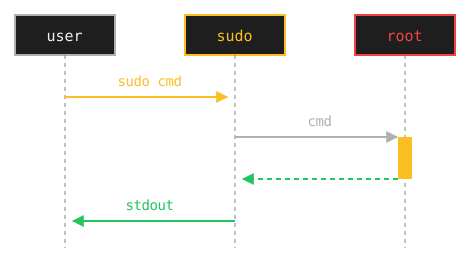
Figure 1: Privileges are borrowed only while the right-hand lifeline shows the orange band. The rest of the time, the user stays a normal user. The root lane is not another person — it stands for root's privileges — and stdout means the command's output. The password promptA symbol (like $ or #) shown when the shell is waiting for your input. is left out of the diagram.
4. How Are su and sudo Different?
Conclusion: su switches you into root and stays there; sudo borrows privileges for one command and returns them immediately. For everyday use, sudo is the safe choice.
su. How is it different from sudo?su (substitute user) switches users. With no argument it switches you to root. Once you switch, you stay as root until you exit.su makes you root, every command you type runs with root privileges. The no-brake state continues. With sudo, it's per command, so you spend only a moment in the dangerous state.| Item | su |
sudo |
|---|---|---|
| What it does | Switch to root and stay there | Borrow privileges for one command |
| Scope of power | root until you exit |
Only while that command runs |
| Password asked | root's password | your own (the running user's) |
| Logging | Becoming root is logged, but what you then do is not | Records who did what |
| Everyday use | Discouraged | Recommended |
sudo su exists too, but start with sudo command
There's also sudo su or sudo -i to "enter a root shell via sudo" — a shell is the interactive program that receives the commands you type and runs them; "terminal" and "console" refer to much the same thing. It's used when you need to run several admin tasks in a row, but it carries the same risk as su because you sit in a root shell. While you're a beginner, it's safer to get used to the basic form: add sudo to each command.
5. How Do You Use sudo? (The Basic Form)
Conclusion: Just put
sudoin front of the command that needs admin rights. The basic form issudo <command>, and it asks for your own password the first time.
sudo in front of a command that needs admin rights. For example, to refresh the package list — a package is the format Linux uses to distribute software — you type this.sudo apt update
[sudo] password for lina:
Hit:1 http://archive.ubuntu.com/ubuntu jammy InRelease
...
You can check who you are right now with whoami.
whoami
lina
Only inside the sudo-prefixed command do you act as root; once it ends, you're back to lina.
Check what you're allowed to do with sudo -l
Which users may use sudo, and which commands they can run, is managed in a config file called /etc/sudoers. To list the sudo actions allowed to you, run this.
sudo -l
Knowing "what I can run with admin rights" makes it faster to diagnose a Permission denied dead end.
6. What Is the Principle of Least Privilege?
Conclusion: The idea of holding only the minimum privileges needed for the task. Stay a normal user day to day and borrow admin rights only for the moment you need them, reducing both accidents and damage.
sudo only for the one moment you need it.Least privilege becomes a habit
- Log in as a normal user day to day (don't live as root)
- Add
sudoonly to commands that need admin rights - Before adding
sudo, pause and ask "does this command truly need admin rights?" - Don't copy-paste and run a
sudocommand you don't understand
Make "give strong privileges back quickly" a habit, and you'll prevent most accidents.
7. How Do You Try It Hands-On?
Conclusion: Check who you are with
whoami, then actually type commands with and withoutsudoto see how access changes. That's the fastest way to understand.
whoami, then try a privileged action with and without sudo—you'll feel "ah, this is where admin rights are needed."whoami and the sense of privileges without worrying about breaking anything.whoami id
lina
uid=1000(lina) gid=1000(lina) groups=1000(lina),27(sudo)
If the id output includes a sudo group (Ubuntu and Debian) or a wheel group (RHEL family), that user can use sudo. If uid is anything other than 0 (like uid=1000), you're a normal user right now, not root.
Type whoami in the Penguin Gym Linux terminal and confirm "who am I right now." Once you grasp the sense of privileges, deciding whether to add sudo becomes second nature.
id and sudo -l are not supported in this site's terminal. Try those two on a real machine, such as Ubuntu.
Lina Forgets to Add sudo
Conclusion: As a normal user, creating a file in a system directory stops with
Permission denied. Addingsudolets it through (this example is from a real Ubuntu machine).
/etc.touch /etc/example.conf
touch: cannot touch '/etc/example.conf': Permission denied
/etc is a place normal users can't write to. This is proof that the brake worked.sudo and try again.sudo touch /etc/example.conf ls -l /etc/example.conf
-rw-r--r-- 1 root root 0 Jun 6 10:10 /etc/example.conf
root.sudo belongs to root. Try without sudo first, then add it when you're refused—that way you never use privileges you don't need.Mini Exercises
Conclusion: Type the
whoami,id, andsudo -lcommands from this guide and check your own privileges.
Exercise 1: Check Who You Are Right Now
Task: Display the username you're logged in as.
Show Hint 1 (Direction)
There's a command whose name reads like the question "who am I?"
Show Hint 2 (Command name)
Use whoami. It's "who am i" squeezed into one word.
Show Answer
whoami
lina
Exercise 2: Check Whether You're in the sudo Group
Task: Display your groups and see whether sudo is among them.
Show Hint 1 (Direction)
One command prints your user ID and your groups together. It's two letters long.
Show Hint 2 (Command name)
Use id, then look at the groups= part of the output.
Show Answer
id
uid=1000(lina) gid=1000(lina) groups=1000(lina),27(sudo)
If groups= contains 27(sudo) (or wheel on the RHEL family), that user can use sudo. Try this exercise on a real machine, such as Ubuntu.
Exercise 3: List the sudo Actions Allowed to You
Task: Display which sudo actions you are permitted to run.
Show Hint 1 (Direction)
sudo itself takes an option that lists your permissions. Think of the first letter of "list."
Show Hint 2 (Command name)
Use sudo -l.
Show Answer
sudo -l
User lina may run the following commands on penguin:
    (ALL : ALL) ALL
The real output also starts with a Matching Defaults entries block, so part of it is omitted here. The first time, it asks for your password: nothing appears on screen as you type, but just type it and press Enter. Try this exercise on a real machine too.
Review
Conclusion: root is an account with the limits removed; sudo borrows power for a single moment. That distinction is what least privilege is built on.
sudo per command beats settling into a root shell with su.sudo first, then add it when I'm refused.Today's 3-Line Summary
Conclusion: Understand what root is, how sudo works, and the principle of least privilege, and admin rights stop being scary.
- root is an account exempt from permission checks - it can do anything, so its mistakes and damage reach the entire system
sudo <command>borrows privileges for one command - unlikesuyou never settle in as root, and every run is logged- Make least privilege a habit - normal user by default, administrator for a moment; check your permissions with
sudo -l